Tuesday, 18 August 2009


Sharing with Google Groups
As more and more businesses and organizations "go Google," we find that many of the features we develop based on feedback from large enterprises end up benefiting all of our users. We recently rolled out improvements to the way Google Groups interacts with several of our applications. Now, sharing calendars, sites and documents with multiple people is easy — instead of adding people one at a time, you can simply share with an entire Google Group.
As an example, imagine you're organizing a local intramural softball team tournament. You use Google Docs to keep track of the rosters for each team as well as each team's performance.
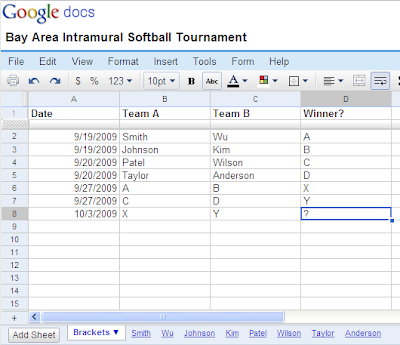
You want all the players, but only the players, to have editing access. You already have a Google Group set up with the tournament participants, so you simply share the spreadsheet with the group itself, granting the group members permission to edit.
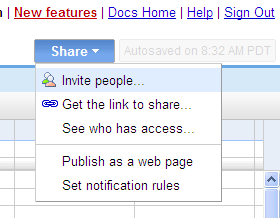
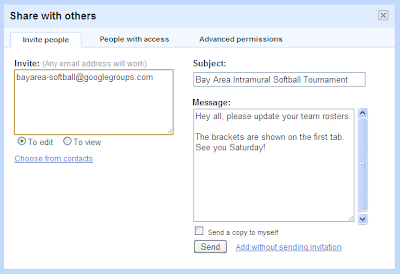
Now, when people join or leave the Google Group, they will automatically gain or lose editing access to the spreadsheet. It's that easy.
This was a feature that people wanted to "just work" — and now it does. Go ahead and try it out with your sites, calendars and documents!


As an example, imagine you're organizing a local intramural softball team tournament. You use Google Docs to keep track of the rosters for each team as well as each team's performance.

You want all the players, but only the players, to have editing access. You already have a Google Group set up with the tournament participants, so you simply share the spreadsheet with the group itself, granting the group members permission to edit.


Now, when people join or leave the Google Group, they will automatically gain or lose editing access to the spreadsheet. It's that easy.
This was a feature that people wanted to "just work" — and now it does. Go ahead and try it out with your sites, calendars and documents!
Back to Basics: Troubleshooting goals
One of the easiest ways to make sense of your data and measure business objectives for your website (and even assign a monetary value to them) is to create goals. However, once you've correctly implemented your tracking code and identified the pages you want to create goals for, you may run into some common goal set-up problems. Below are some tips to help you solve some common issues first-time Analytics users run into so that you can get going on the road to taking useful action with your Analytics goals.
Incorrect goal URL
One of the most common goal set-up errors is to enter the incorrect URL. To confirm that you're entering the URL correctly, try reaching the goal page on your own site and copying and pasting the URL into the 'Goal URL' field.
You can remove the domain name entirely from the field and Google Analytics will still track the page as a goal. For example, if your goal is http://www.mysite.com/1/thanks.html , you can safely use '/1/thanks.html' as your Goal URL.
Duplicate final goal step
When you have steps leading up to your goal, the last step you specify in the Goal Funnel Settings should be the final step prior to reaching your goal. The goal itself should be placed in the 'Goal URL' field and does not need to also be included as a last step.
Goal value error
It is possible that the Goal value entered includes non-numerical characters. If the goal value is set to $2,560, the error message is displayed because the value contains the characters "$" and ",". In this case, only the value 2560 will suffice.
Historical data not relevant
If you've recently applied a new goal, it will only apply to data processed after the goal was implemented, and not to historical data in your account. This is why you might not see data for your website if you haven't had anyone convert on a goal after you created one.To read the full list of reasons why your goal creation failed, read this Google Analytics Help Article. For an in-depth explanation about goals and how to set them up, please read this previous post.


Default font faces to be updated
In the same way that you regularly try out changes to your AdSense ads to increase your earnings, we're also constantly looking for new ways to help you earn more. We've been analyzing the performance of the three available font faces (Arial, Verdana, and Times New Roman), and have found that each font performs best in different ad formats due to factors like character width. Based on these findings, we'd like to let you know that we'll be updating some of the default font faces associated with specific ad formats within the next few days.
This upcoming change will only affect ad units in Latin-based characters which have 'AdSense default' selected as the font face. If you've set an account-wide font face, we hope our findings will encourage you to experiment with other font faces on an ad unit basis.
Currently, most ad units set to the AdSense default font face are displayed in Arial, with a few in Verdana. Here are the new default font faces we're launching for our ad units:


This upcoming change will only affect ad units in Latin-based characters which have 'AdSense default' selected as the font face. If you've set an account-wide font face, we hope our findings will encourage you to experiment with other font faces on an ad unit basis.
Currently, most ad units set to the AdSense default font face are displayed in Arial, with a few in Verdana. Here are the new default font faces we're launching for our ad units:
Arial: 728x90, 336x280, 120x600, 120x240While we're optimizing the default font face based on performance across all AdSense sites, we also recommend experimenting on your own to determine the best font faces for your ad units and your sites. Just sign in to your account to manually select specific font faces on an ad unit or account-level basis.
Verdana: 300x250, 160x600, 468x60, 250x250, 234x60, 125x125, 180x150
Times New Roman: 200x200
Google Voice for Newbies: Why am I calling myself?
 In our last post, Carol and I signed up for our Google Voice numbers, and read the Google Voice Getting Started Guide for information. Today, I'd like to share my first experience with the Google Voice website and the "Click to call" feature. After setting up my forwarding phones, I noticed the green arrow Call button at the top left of the homepage. Intuitively, I typed Carol's number into the "Call" box, but I was a bit confused when asked to choose a "phone to ring." I selected the existing option (which was my cell) and clicked Connect.
 I wasn't expecting my cell phone to ring, but when it did, I picked up the call. After a few seconds of wondering, "Hold on, why am I calling myself?", Carol answered the line. I explained I was calling from my new Google Voice number, so she saved my new number in her address book. (If you use Gmail, you'll notice that your address book is shared across these products. This means you'll see all your Gmail contacts in Google Voice and any changes to your Google Voice contacts will be reflected in your other Google products.)
After hanging up, I realized I could choose which phone (cell, home, or desk) I wanted to use to connect to Carol. Pretty cool! Google Voice acts like a hub; you decide which phone you want to use each time you place a call, or you can check the "Remember my choice"** box to use the same phone anytime you place an outbound call from the web. When you click connect, Google Voice will ring that phone and dial out to your desired recipient. When I use the click to call feature, my Google number displays on the outbound caller ID. Now that I've done this a few times, it's not so surprising when my own phone rings when I place a call via the website.
A quick read on the different calling options for Google Voice can be found in the Google Voice Help article Google Voice Basics: Making Calls. And you can always post any other questions you may have in the Getting Started category of the Google Voice Help Forum.
Posted by Heather and Carol
Googlers
** The "Remember my choice" feature can be a bit confusing. After experimenting with it, I learned that the number selected is remembered by machine. For example, on my work laptop, I can choose my work phone as "Phone to ring", and select "Remember my choice". This means from now on, when I want to dial out via my work laptop, my work number will be selected to ring by default. If I go home and use my home desktop to dial out, I can select my home number as "Phone to ring", and select "Remember my choice". From now on, my home phone will ring when I dial out of my home desktop, and my work phone will ring if I dial out of my work laptop.


Monitoring California Wildfires with Google Maps
Last week, several wildfires sprung up across California. These blazes are the latest in what is anticipated to be a very active fire season. California is tracking ahead of an average year, already reporting nearly 3,000 wildfires.
Located between the towns of Swanton and Bonnie Doone in the Santa Cruz Mountains, the Lockheed Fire has burned more than 7,000 acres and destroyed two outbuildings. Soon after the fire began, Tom Moore, Online Editor of the the Santa Cruz Sentinel, created this informative Google MyMap of the area. It is being updated regularly, and has served as a significant source of information for the residents of the area, receiving over half a million views so far.
View Lockheed Fire Map in a larger map
Data for the map is crowdsourced from a live discussion feed and added to the map by Sentinel staff. The contributors get their information from local briefings, personal interviews, and empirical observations. While the data has not been verified by an authoritative source such as CalFire and may therefore contain some inaccuracies, the benefit is that it can be published quickly to get valuable information into the hands of those who need it while it's still relevant.
As of Monday morning, the Lockheed Fire was 65% contained - up from 5% Friday afternoon. We wish the firefighters on the front-lines luck and safety in their ongoing efforts. We also wish good fortune to the local community members whose homes and businesses are threatened.


Subscribe to:
Posts (Atom)


